Starlink Finally Adopts Passkeys – A Small Change With Big Security Impact
Starlink is the latest major tech platform to kill the password.
As of October 2026, SpaceX’s satellite internet service now officially supports passkeys for account logins. The company published a new support page confirming the rollout: “As of October 2026, passkeys are now available”.
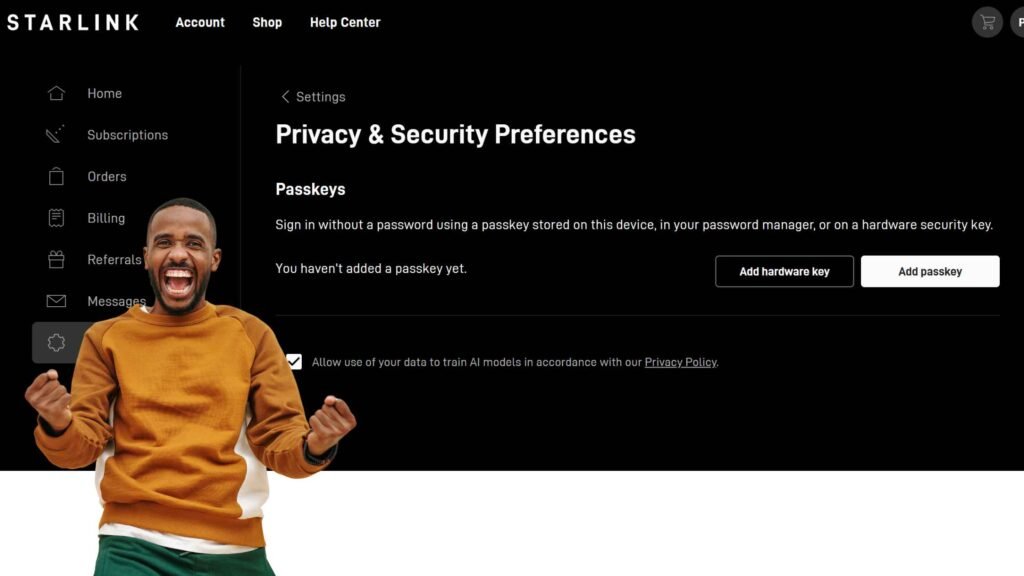
For anyone managing a Starlink account, this is a much-needed upgrade. Passwords can be phished, guessed, or leaked in data breaches. Passkeys fix that.
Only when you sign up through this link (Official Starlink Referral).
What Are Passkeys and Why Are They Better?
If you haven’t used one before, a passkey is not just a complex password.
Instead of making you remember and type a long string of characters, passkeys use a private cryptographic key stored securely on your device – your phone, laptop, or password manager. When you log in, your device signs a challenge from the website to prove you own the key, without ever sending the key itself.
In practice, logging in just takes your Face ID, fingerprint, PIN, or a hardware security key. Starlink itself explains it as “a faster, easier, phishing-resistant way to sign in than a password”.
Here’s the quick comparison I always tell my readers:
| Feature | Traditional Password | Passkey |
|---|---|---|
| Security | Vulnerable to phishing & leaks | Phishing-resistant, private key never leaves device |
| Convenience | Need to remember / manage | Login with Face ID / fingerprint / PIN |
| What Starlink sees | Your password hash | Nothing biometric. Your biometrics stay local on your device |
And that’s an important point Starlink emphasizes: “Starlink does not see your fingerprint, face, or device PIN. Those stay on your device.” Plus, you can add up to 10 different passkeys to your account.
How to Set Up a Passkey on Your Starlink Account
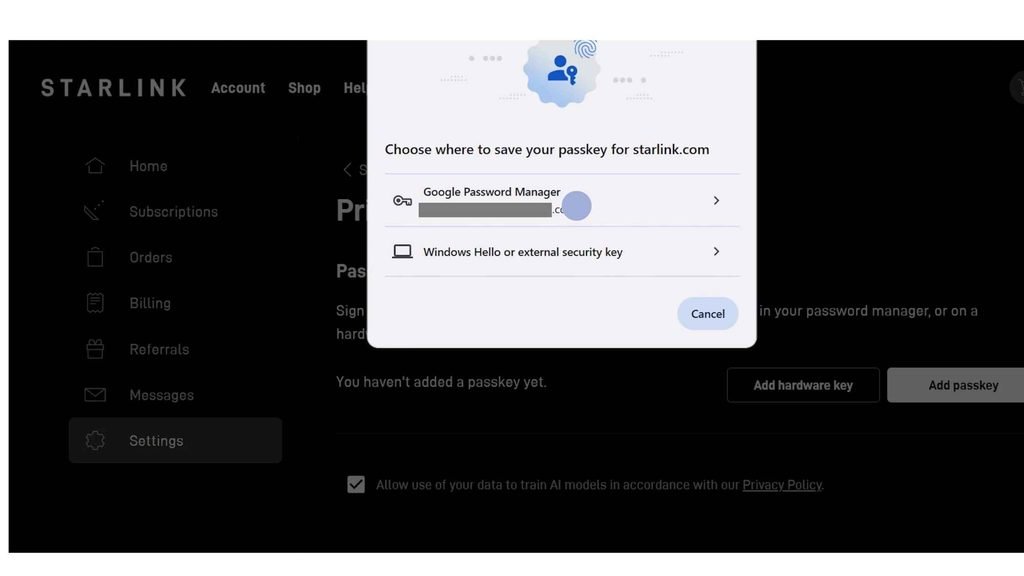
Setting it up takes less than a minute. This is based on my own test on the dashboard:
1. Go to Starlink.com and sign in to your account.
2. Navigate to Settings > Privacy & Security.
3. Scroll down to the Passkey section and click Add Passkey.
4. Save it where you want. You can store it on your device directly, or in a supported password manager like iCloud Keychain, Google Password Manager, 1Password, or Bitwarden.
5. Confirm with your biometrics.
Next time you log in, just select “Sign in with passkey” and approve with your fingerprint or Face ID. You can also store it on a hardware security key if you own one, which is actually what SpaceX uses internally to protect Starlink systems.
My Take: Great Step, But Not Fully Passwordless Yet
From my perspective as someone who follows Starlink’s security updates closely, this is a win, but it’s a half-step.
The good: Passkeys are optional, so you don’t have to switch immediately. You can keep using both passwords and passkeys. This also builds on the two-factor authentication Starlink added back in 2024 after some account hijacking reports.
The limitation: Because the traditional password login still exists, an attacker could still try to break in through the old password method or by abusing the account recovery process. The account is not 100% passwordless yet. So if you enable a passkey, my advice is: don’t stop there. Make sure your original password is still long and unique, and keep 2FA enabled.
I personally switched to passkeys for Google, Apple, and now Starlink, and the daily experience is just smoother. No more typing passwords on the Starlink app while on mobile data in a remote area.
Why This Matters for All Starlink Users
This isn’t just about convenience. Starlink accounts control billing, service location, and even transferring your dish. If someone gets in, they can disrupt your service. With Starlink being used in remote areas, RVs, boats, and businesses, a phishing-resistant login is essential.
I expect SpaceX to eventually make passkeys the default and phase out passwords, just like Google and Microsoft are doing.
FAQ
1. Do passkeys replace my Starlink password?
No. Passkeys are optional for now. Setting one up does not replace your password. You can keep using both.
2. How many passkeys can I add?
You can add up to 10 passkeys per account. If you reach the limit, you need to remove one first.
3. Is my biometric data sent to Starlink?
No. Starlink confirms it does not access your biometric data. Face ID, fingerprint, and PIN stay locally on your device.
Only when you sign up through this link (Official Starlink Referral).