

Nearly everyone with an iPhone relies on the Photos app to store their pictures, but most people barely scratch the surface of what it can actually do.
With every iOS release, Apple quietly adds new tools to Photos. Because these updates rarely get much attention outside of official release notes, plenty of genuinely useful features fly under the radar for years.
Here are nine of them worth knowing about.
1. Pinch to Zoom Out for a Grid Overview
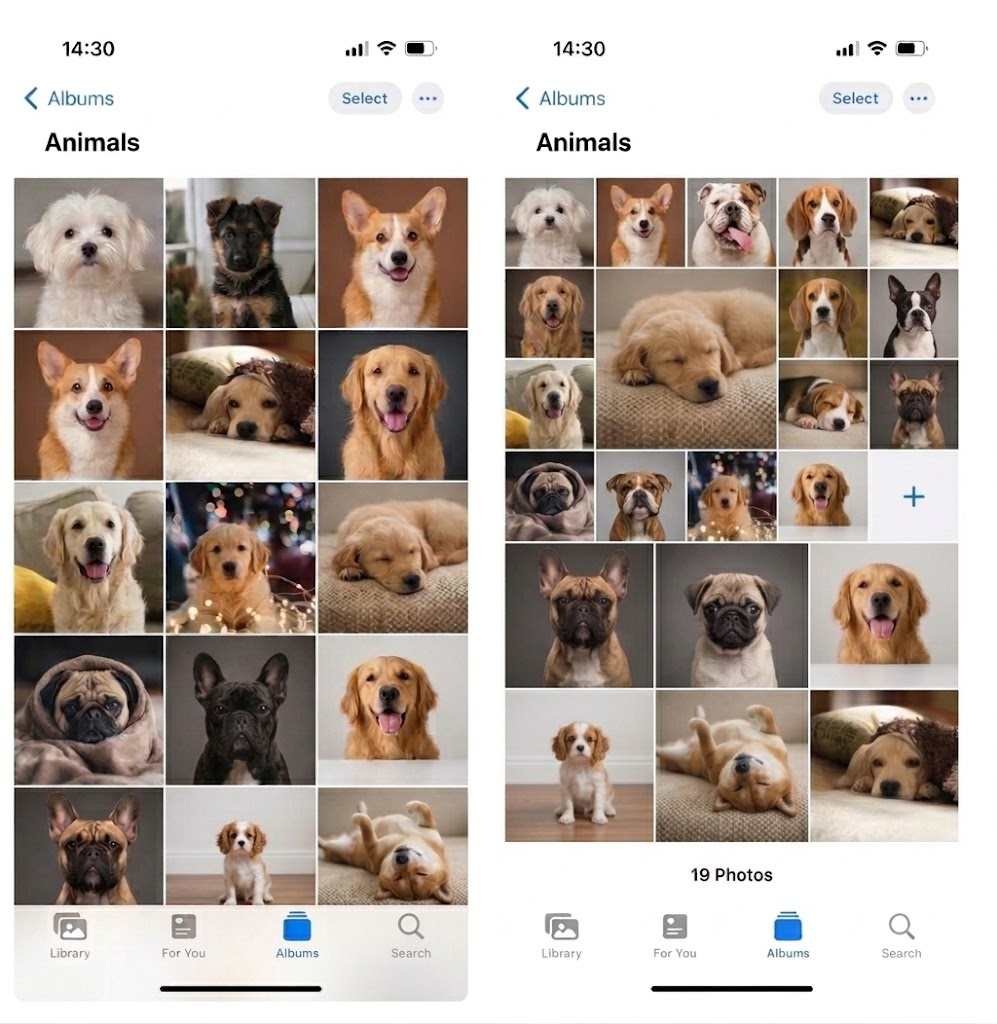
Keeping your library organized into albums and folders is ideal, but let’s be honest — most people’s camera rolls are a mess.
Rather than endlessly scrolling to dig up a photo from a trip two years ago, try pinching the screen while inside an album. This shrinks every photo into a compact grid, letting you scan through hundreds of images at once instead of one row at a time.
2. Let the Search Tab Do the Work
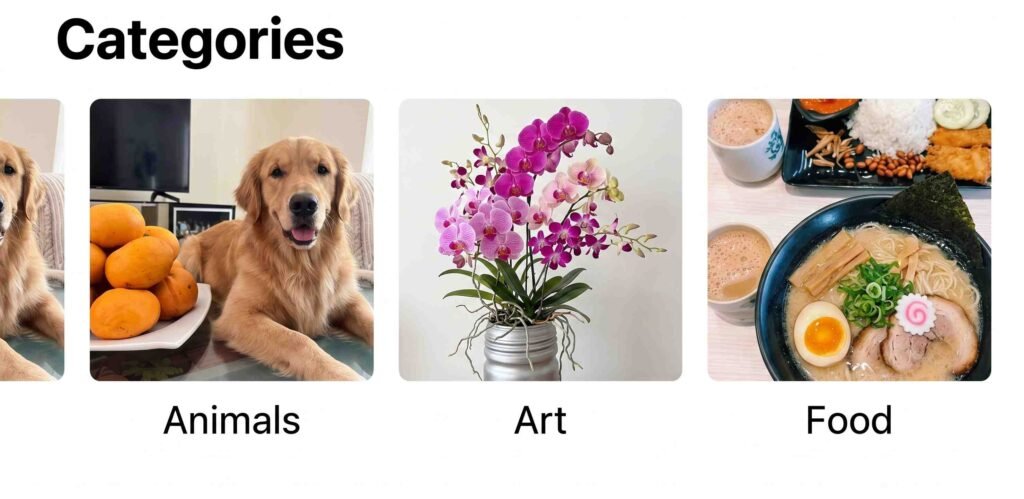
The Photos app automatically scans your library for recognizable faces, objects, and scenery, then sorts everything into searchable categories — think “Dogs,” “Coffee,” or “Mountains” — without you lifting a finger.
Open the Search tab to browse the categories Apple has already generated, or simply type a keyword into the search bar and let the app surface matching photos, even ones that don’t have an existing category.
3. Filter Your Library by Media Type

Trying to find a screenshot buried in thousands of photos, memes, and selfies is a pain. Instead of scrolling forever, head to the Albums tab and scroll to the Media Types section. There you’ll find your photos already sorted into groups like Screenshots, Live Photos, Bursts, Panoramas, and more.
4. Check Out the Curated Memories in “For You”

The For You tab uses an algorithm to automatically assemble your best shots into short slideshows called Memories.
You’ll find a few different styles: trip-based recaps that pull together photos from a single outing, Portrait compilations built from your selfies, and an annual Year in Review that surfaces highlights from the past twelve months.
5. Hide Photos You’d Rather Keep Private
If you’ve ever had someone peek over your shoulder while you scroll through your camera roll, you know the appeal of a little privacy. Skip the sketchy third-party “vault” apps and use Apple’s built-in hiding feature instead.
Open any album, tap Select, choose the photos you want to hide, tap the three-dot menu, and select Hide. Hidden images move to the Hidden album, tucked away under Utilities in the Albums tab.
6. Clear Out Duplicate Shots
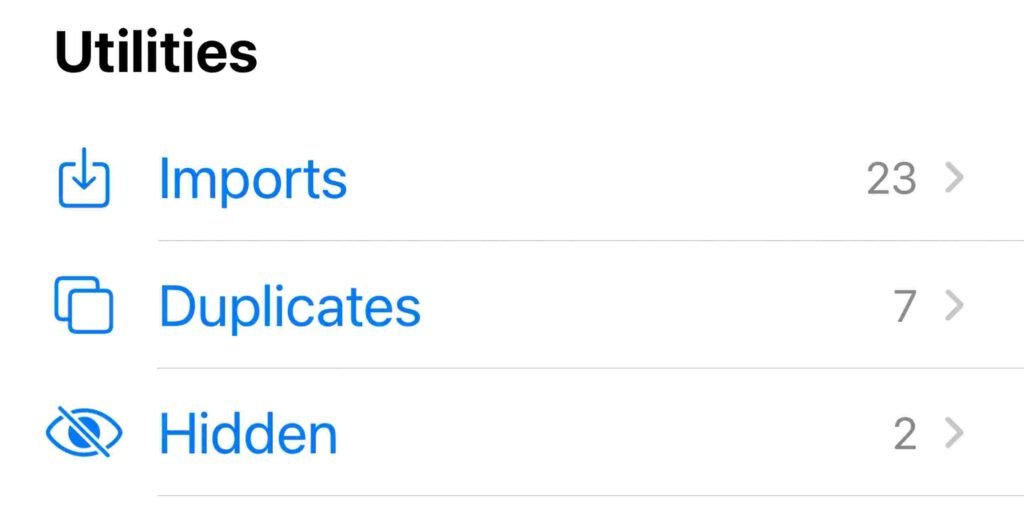
We’ve all taken ten nearly identical photos just to be safe, and that habit adds up fast. Under Utilities in the Albums tab, look for the Duplicates folder — Apple automatically groups near-identical images there so you can merge them in a couple of taps.
It’s a handy shortcut, though the detection isn’t perfect. If you want a more thorough cleanup, a dedicated third-party photo-management app will usually catch more duplicates.
7. Apply the Same Edits to Multiple Photos
Instead of manually adjusting exposure, contrast, and filters on every photo in a set, you can copy the edits from one image and paste them onto others in bulk. It’s a fast way to give a whole batch of photos a consistent look.
For fixing orientation issues across many images at once, though, an iPhone Shortcut built for bulk rotation tends to work better than the Photos app’s native tools.
8. Lift a Subject Off Its Background
Whether you’re designing a product listing or just want to combine two images creatively, removing a background used to mean downloading a separate app.
Now you can do it natively: press and hold on the main subject of a photo, and thanks to Visual Look Up, the app will lift it away from the background automatically. From there, copy the extracted subject and paste it directly into another app to keep editing.
9. Turn a Photo of Text Into Text You Can Copy
Snapped a picture of a flyer, whiteboard, or notice board? Instead of retyping everything by hand, tap the Scan Text icon, highlight the text the app detects, and copy it straight into a message or note.
Getting More Out of Photos
Given how easy it is to snap dozens of photos a day, it’s no surprise most people’s libraries balloon into the thousands. These built-in tools go a long way toward making that library easier to search, organize, and clean up — no third-party app required.